How to Control a TV Without Wi-Fi or Remote
(USB Keyboard First, Other Offline Methods Explained)
Lost your TV remote and the TV has no Wi-Fi? This is a very common problem — and the solution is often simpler than expected.
If your TV has no Wi-Fi, the fastest way to control it is to plug in a USB keyboard.
This guide focuses on what actually works when a TV is offline, based on real testing across multiple TV brands.
Can a TV Be Controlled Without Wi-Fi?
Yes. Wi-Fi is not required for basic TV functions such as:
- Power on/off
- Menu navigation
- Input switching
- Volume control
These actions are handled locally by the TV system.
The Best Solution: Use a USB Keyboard
When there is no Wi-Fi and no remote, a USB keyboard is the most dependable option.
Why a USB Keyboard Works
- TVs recognize it as a standard input device
- No Wi-Fi, Bluetooth, or apps needed
- Works even during first-time setup
- No pairing process
How to Use
- Plug a USB keyboard into the TV
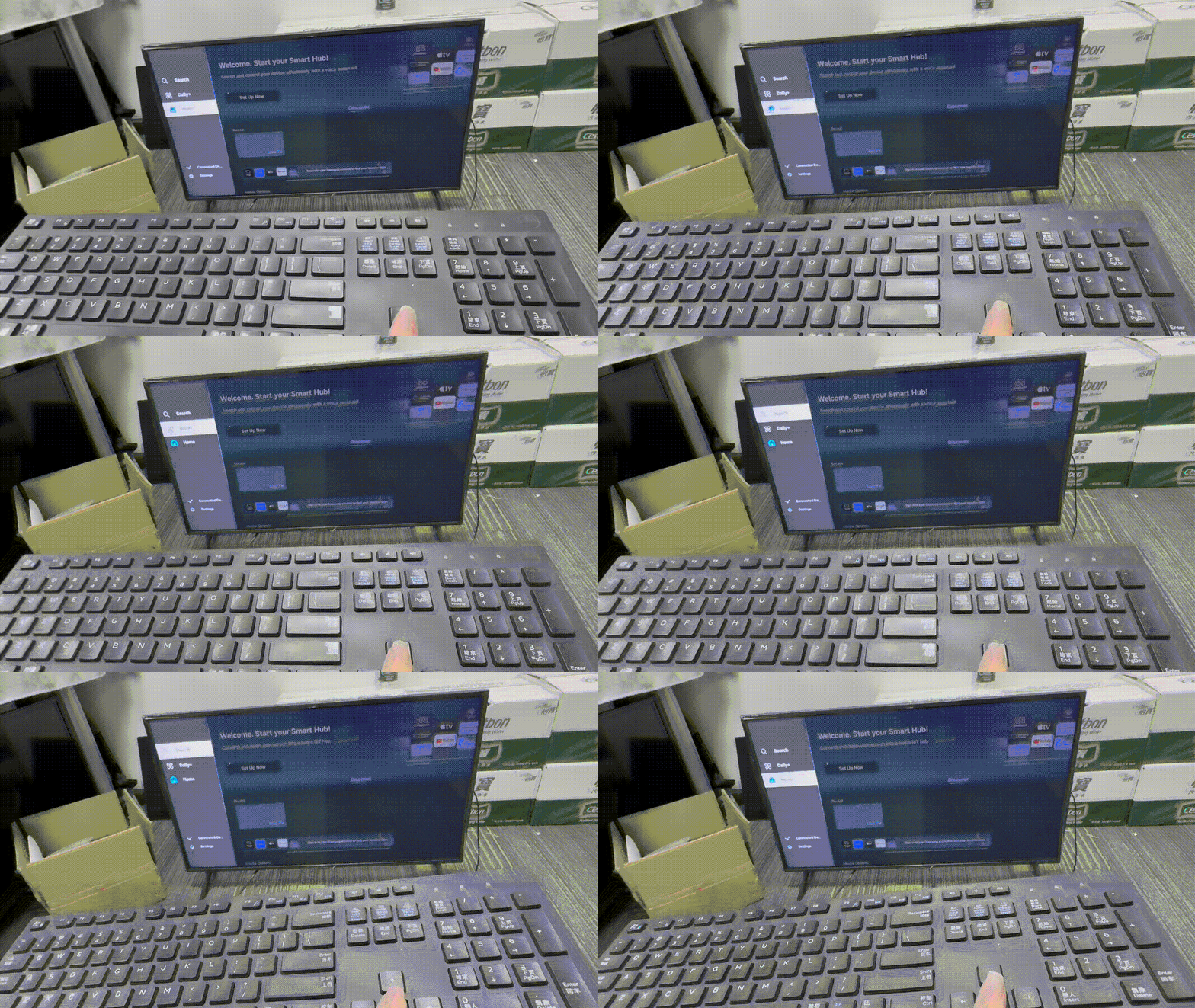
- Use arrow keys to navigate
- Press Enter to select
- Use Esc / Backspace to go back
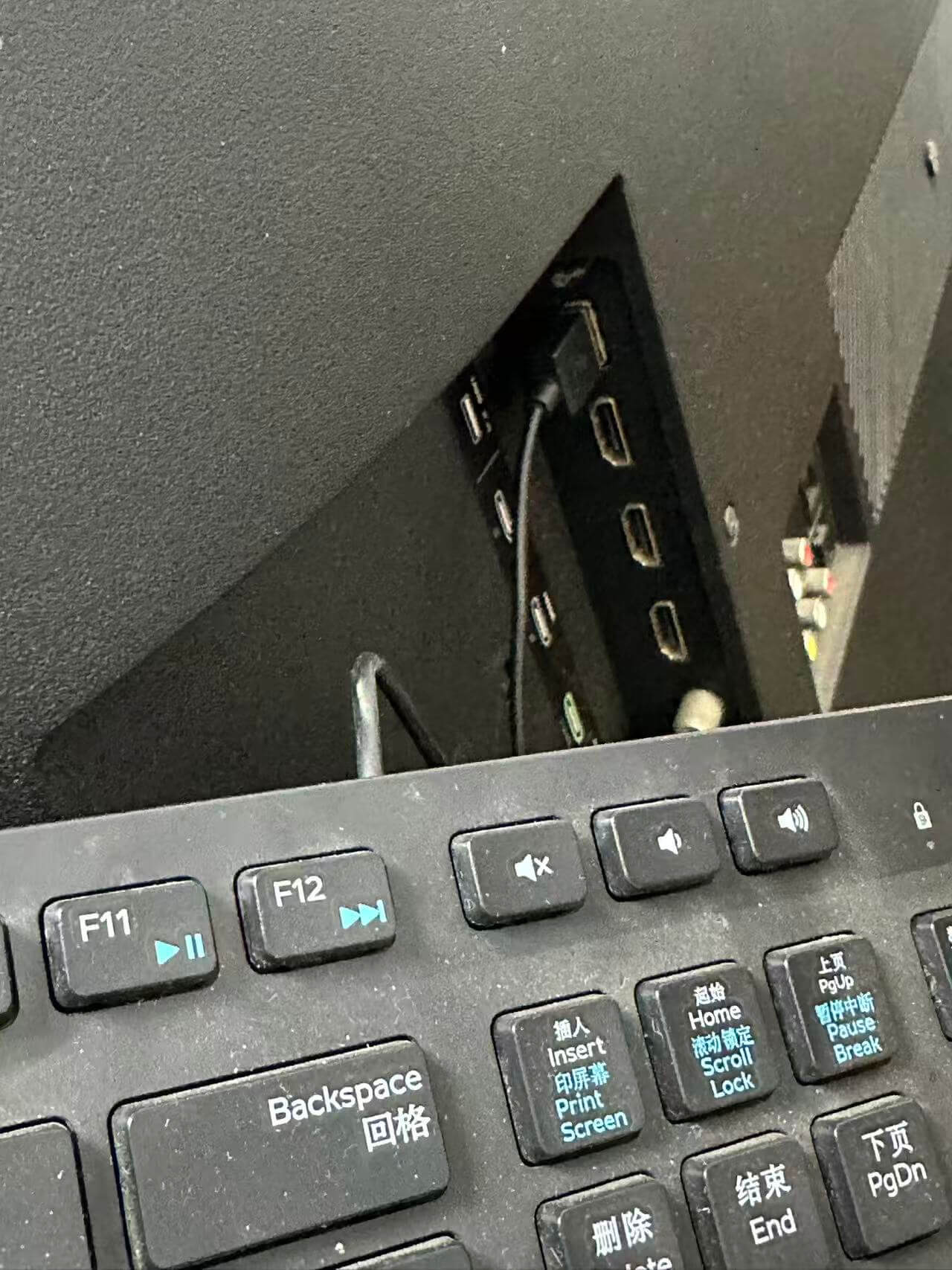
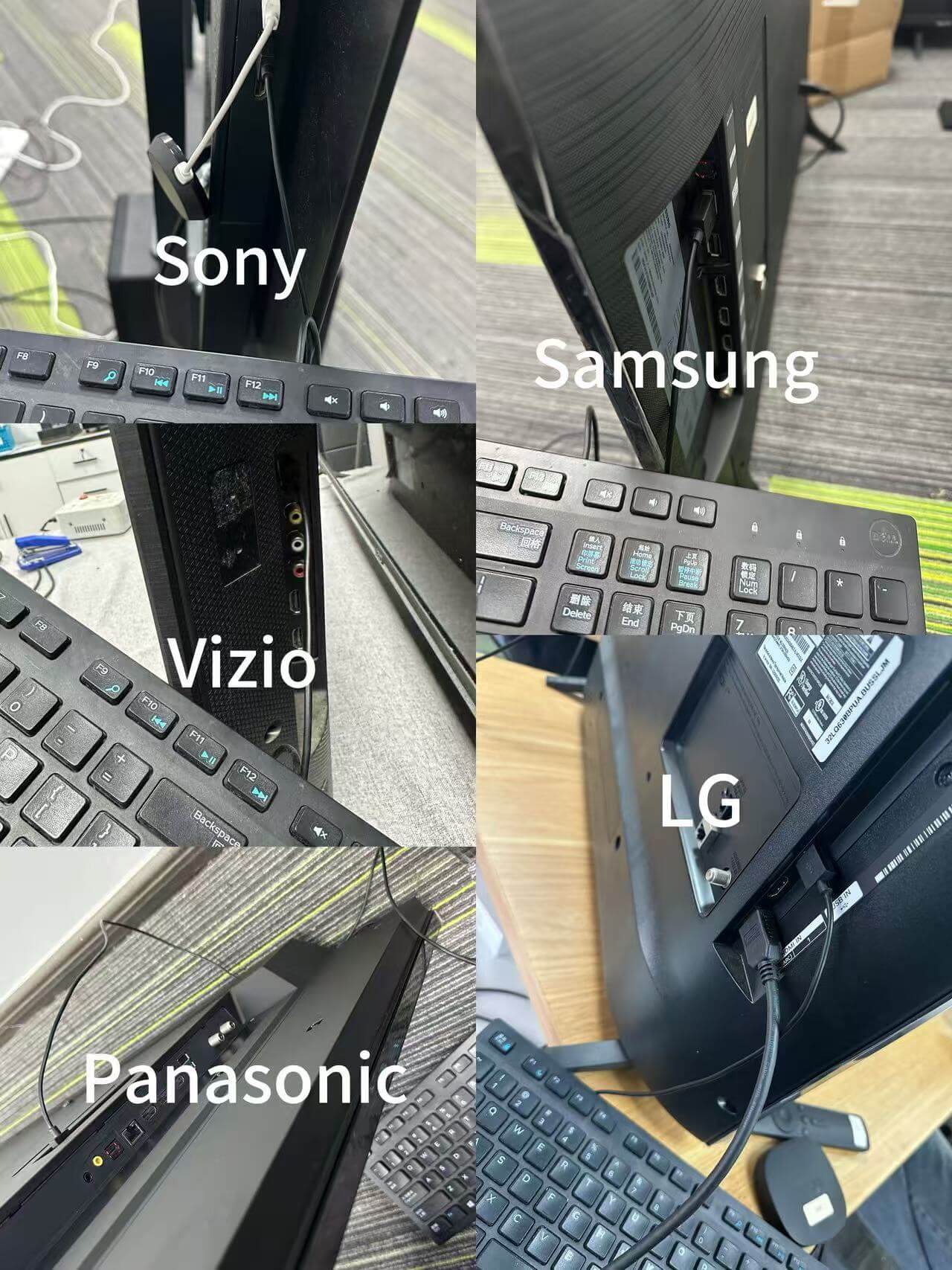
Tested TV Brands (USB Keyboard Control)
These brands were tested under offline conditions without Wi-Fi. USB keyboard control worked reliably on:
- Samsung Smart TV
- LG webOS TV
- Sony TV
- Vizio
- Panasonic
Method 2: Use Your Phone as a TV Remote (After Wi-Fi Is Connected)
After using a USB keyboard to control the TV and connect it to Wi-Fi, your phone can easily take over as the main remote control.
This approach answers many common questions users have, such as:
- Can I control my TV with my phone?
- How do I use my phone as a TV remote?
- Can an Android phone or iPhone replace a TV remote?
The key point to understand is simple:
Phone-based TV remote apps usually work only after the TV is connected to Wi-Fi.
That’s why a USB keyboard is often the first step, and phone control comes next.
Android: Control the TV with TV Remote
On Android devices, TV Remote allows you to control a Smart TV once both the phone and the TV are connected to the same Wi-Fi network.
If you don’t have a physical remote, this is a convenient next step after completing the initial setup with a keyboard.
What you can do
- Navigate TV menus
- Adjust volume
- Switch input sources
- Control Smart TV apps
How to set it up
- Make sure the TV is connected to Wi-Fi (using a keyboard if needed)
- Download TV Remote from Google Play:
https://play.google.com/store/apps/details?id=com.universalcontroller.airemote - Open the app and select your TV
- Confirm the pairing request on the TV screen
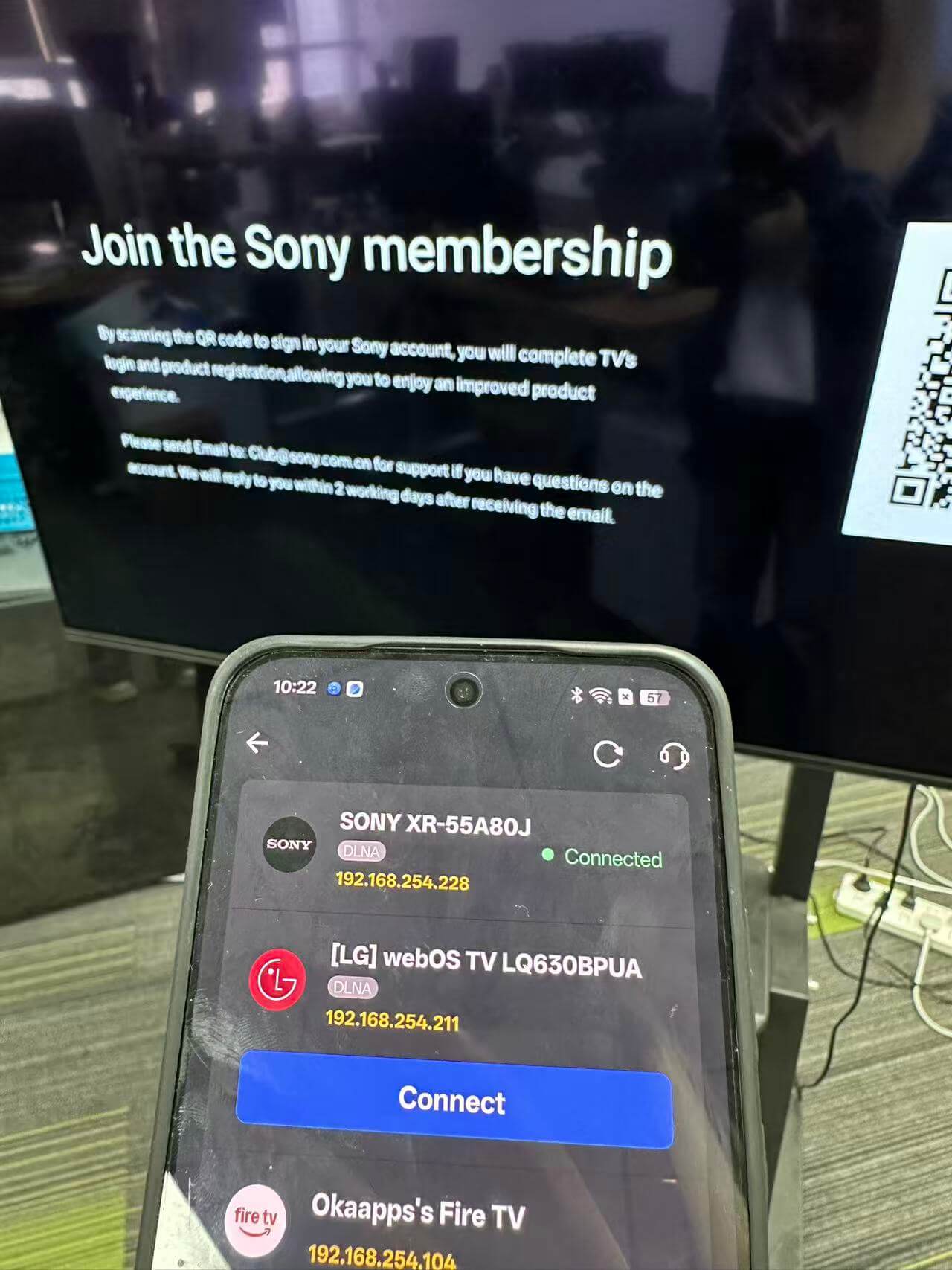
iPhone: Control the TV with AI Remote: TV Remote Controller
On iOS devices, AI Remote: TV Remote Controller lets an iPhone work as a TV remote once Wi-Fi is available.
This is especially useful if the original remote is lost or no longer working, but the TV is already online.
What you can do
- Navigate the TV interface
- Control playback and volume
- Switch input sources
How to set it up
- Ensure the TV is already connected to Wi-Fi
- Download AI Remote: TV Remote Controller from the App Store:
https://apps.apple.com/us/app/ai-remote-tv-remote-controller/id6475768158 - Connect the iPhone to the same Wi-Fi network
- Select the TV and complete pairing
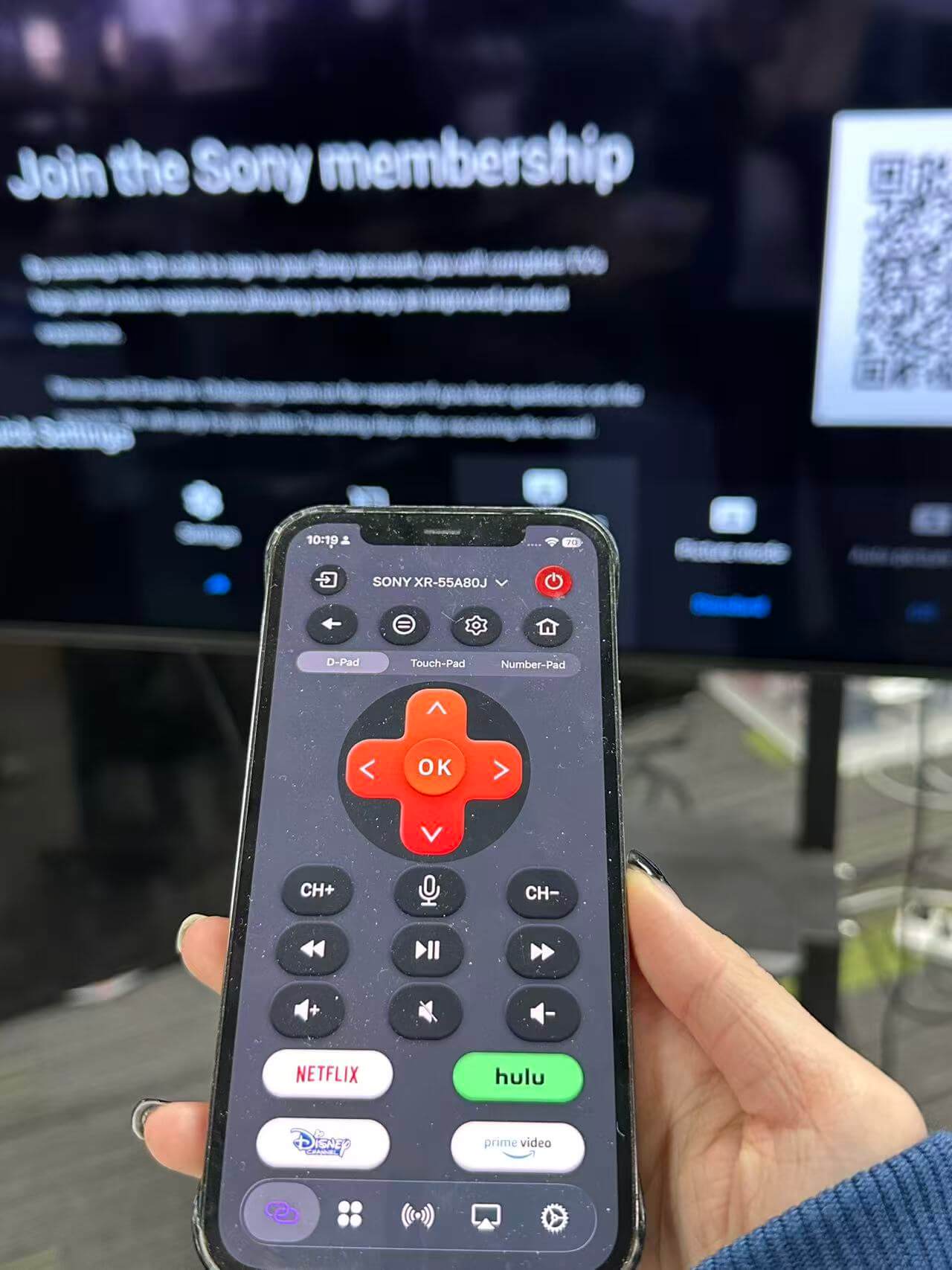
When to Use a Phone vs a USB Keyboard
USB keyboard
Best when the TV has no Wi-Fi, no remote, or is in first-time setup
Phone remote app
Best after Wi-Fi is connected, for daily and long-term use
Used together, these two methods provide a complete and practical solution for controlling a TV with or without Wi-Fi.
Other Offline Methods (Limited Use)
- Mobile hotspot: useful only to bypass setup screens
- HDMI-CEC: works only if a console or device is already connected
- Physical TV buttons: very basic control, slow navigation
What Does NOT Work Without Wi-Fi
These features usually require internet:
- Casting / screen mirroring
- Streaming app login
- Voice assistants
Basic TV control does not.
Quick Recommendation
If your TV has no Wi-Fi and no remote:
- Use a USB keyboard first
- Enable settings if needed
- Try Bluetooth or phone options only after
- Use hotspot only as a temporary workaround
Final Conclusion
If the problem is: “My TV has no Wi-Fi — how can I control it?” The most reliable answer is:
Use a USB keyboard. It works offline, requires no setup, and supports most major TV brands. It is the simplest and most overlooked solution for real no-Wi-Fi situations.